Plate Applications
Applications for Dealer Plates or Manufacturer Vehicle Test Plates should always begin from the ADOT Force.
For additional information on plates, see the Dealer License Plates - Overview topic.
Dealer Plates
 Submitting a Dealer Plate Application
- Log intoADOT Force.
- For additional information, see the ADOT Force Sign-Up or Login topic
- Click the Dealer Plate Application button.
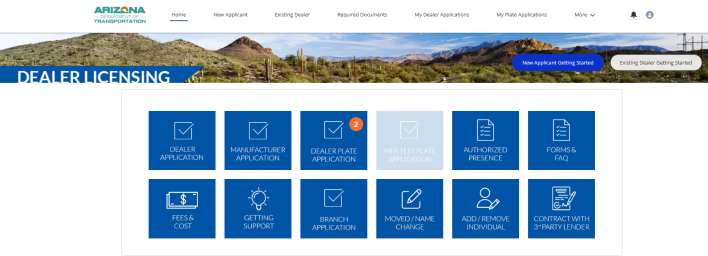
- From the drop down, select the business.
- Click Next.
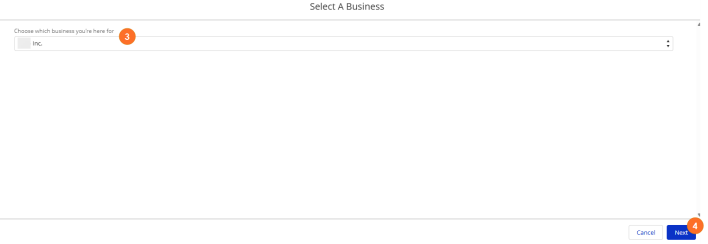
- Information will automatically display, based on the dealer license record. Scroll down.
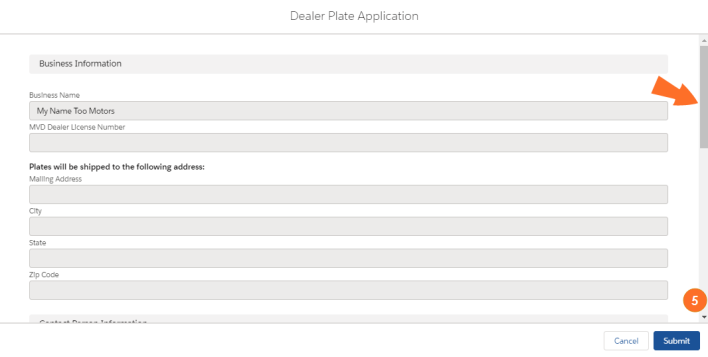
- Type the Requestor Name and Phone.
- Scroll down.
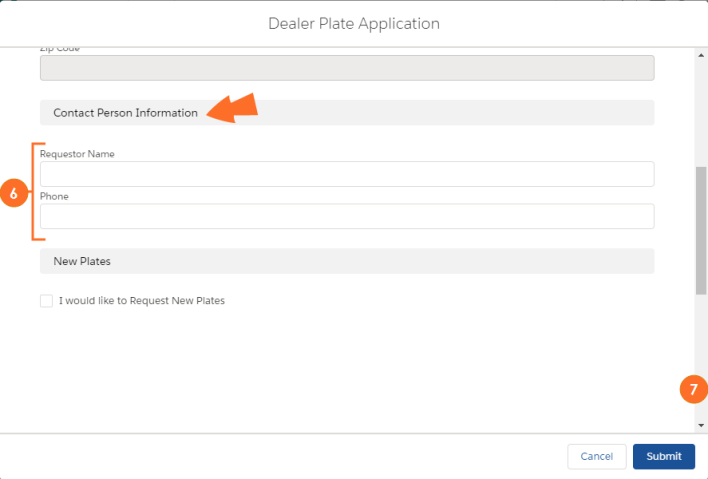
- Click the check box to Request New Plates. Additional fields will display.
- Type the Qty of Dealer Plates requested. The Total Amount due will automatically adjust based on the Qty entered.
- Postage will be added when the Dealer Licensing unit processes the request/application
- Scroll down.
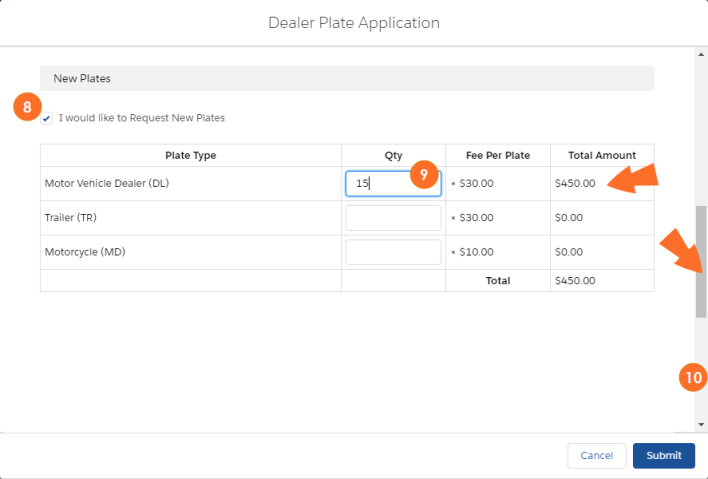
- Check the financial responsibility box, and type the Signature, Title, and Date.
- Click Submit.
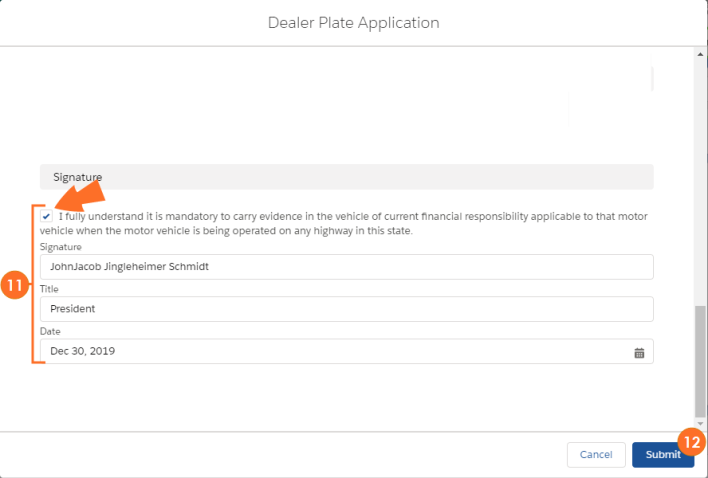
- A confirmation message appears. Click the X to close the message.

- The Dealer Licensing unit will review the application and an invoice will be emailed to the listed contacts of the business.
Replacing Dealer Plates
- Log into ADOT Force.
- For additional information, see the ADOT Force Sign-Up or Login topic
- Click the Dealer Plate Application button.
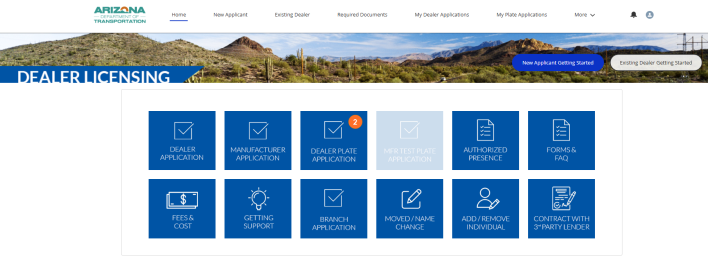
- From the drop down, select the business.
- Click Next.
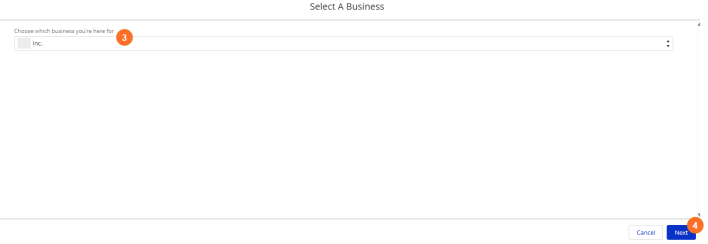
- Information will automatically display, based on the dealer license record. Scroll down.
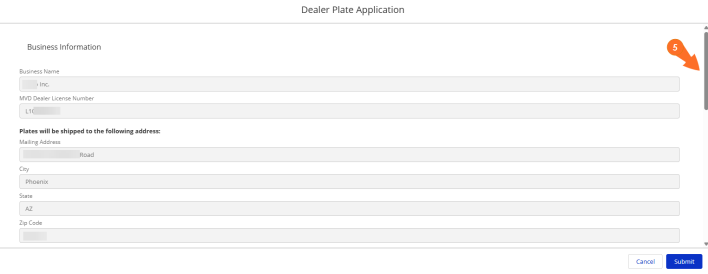
- Type the Requestor Name and Phone.
- Scroll down.
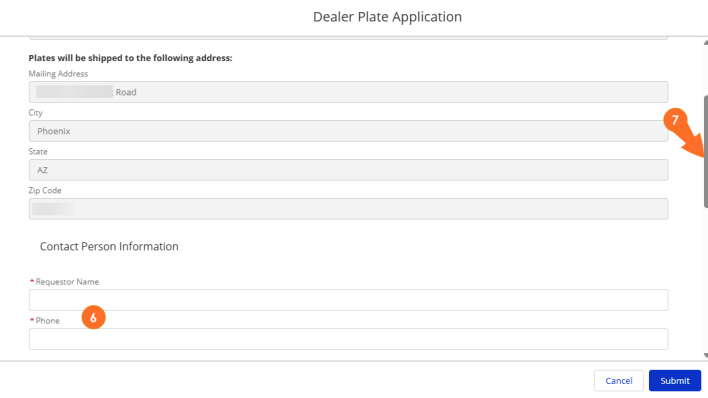
- Click the check box to Replace Plates. All plates that have been assigned to that Dealer will display.
- Click the check box next to each Plate Number that should be replaced.
- Scroll down.
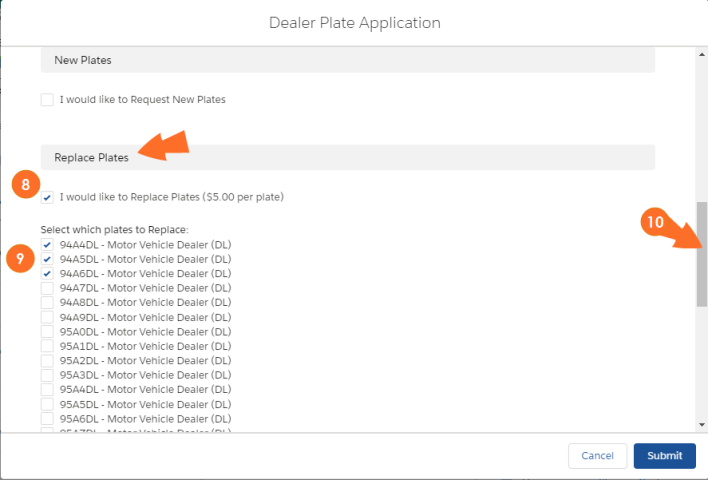
- Check the financial responsibility box, and type the Signature, Title, and Date.
- Click Submit.
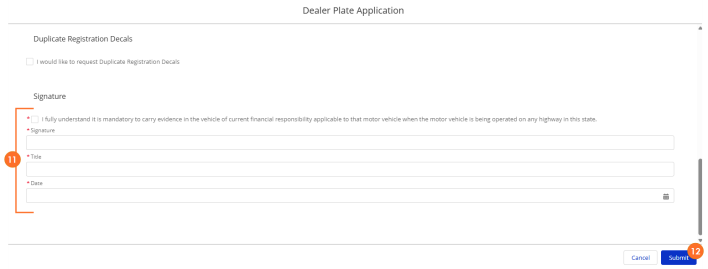
- A confirmation message appears. Click the X to close the message.
- The Dealer Licensing unit will review the application and an invoice will be emailed to the listed contacts of the business.
Canceling Dealer Plates
This function can be done in either the ADOT Force - Dealer Plate Application section, or from the AZ MVD Now Dealer Services.
Canceling Dealer Plates from the ADOT Force

|
If the plates need to be replaced, processing the request this way will result in higher fees. If you want to replace the plates, see Replacing Dealer Plates. |
- Log intoADOT Force.
- For additional information, see the ADOT Force Sign-Up or Login topic
- Click the Dealer Plate Application button.
- From the drop down, select the business.
- Click Next.
- Information will automatically display,based on the dealer license record.
- Type the Requestor Name and Phone.
- Scroll down.
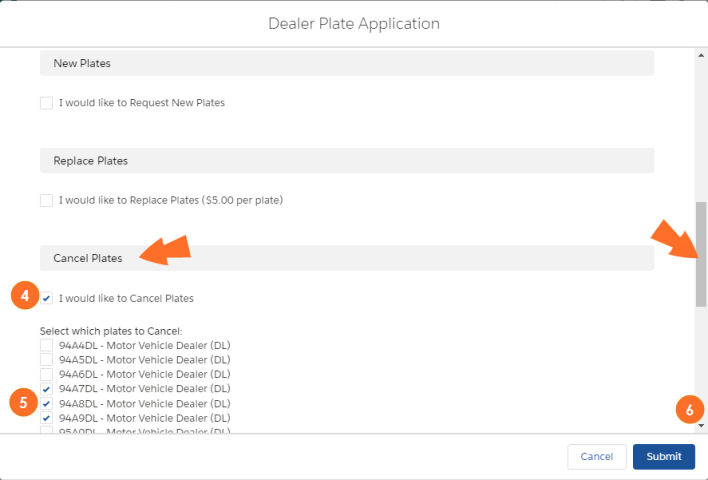
- Click the check box to Cancel Plates. All plates that have been assigned to that Dealer will display.
- Click the check box next to each Plate Number that should be canceled.
- Scroll down.
- Check the financial responsibility box, and type the Signature, Title, and Date.
- ClickSubmit.
- A confirmation message appears. Click the X to close the message.
- The Dealer Licensing unit will review the application and an invoice will be emailed to the listed contacts of the business.
Canceling Dealer Plates from the AZ MVD Now Dealer Services
|
|
If the plates need to be replaced, processing the request through AZ MVD Now will result in higher fees. If you want to replace the plates, see Replacing Dealer Plates. |
Note: This functionality is only available to users who have been designated as an Administrator in AZ MVD Now Dealer Services.
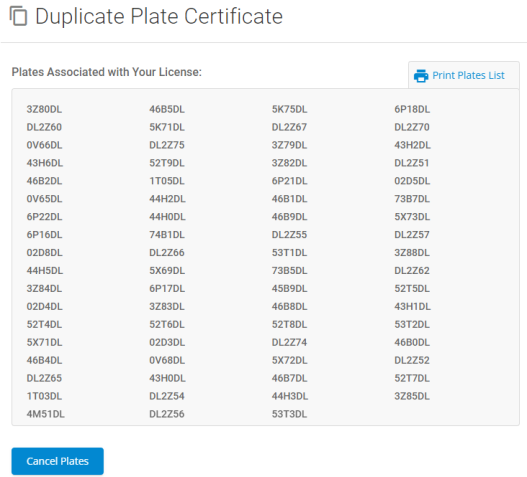
To delete unused, surrendered or lost plates at any time outside of the dealer license renewal, you will use the Duplicate Plate Certificate option to remove them from your plate inventory.
- Sign into AZ MVD Now.
- See Signing into AZ MVD Now for steps
- Select the proper Dealer Services Account from the Account drop down.
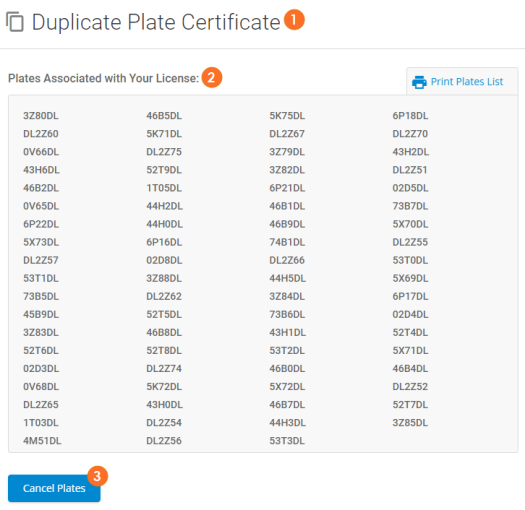
- From the Admin menu, select Duplicate Plate Certificate.
- A list of the plates in your plate inventory will be displayed.
- Click Cancel Plates.
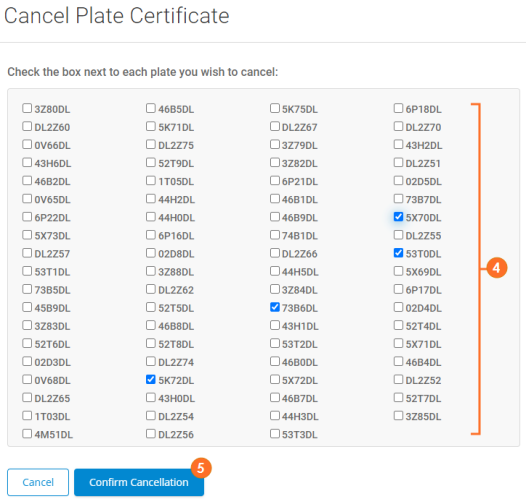
- Check the box next to each plate you need to removed from your plate inventory.
- Click Confirm Cancellation.
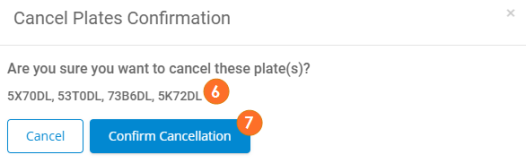
- A confirmation will display. Confirm the plates you selected are those you want removed.
- Click Confirm Cancellation.
An updated list will display.
Next Steps
This request will be automatically processed. No additional notifications will not be sent.
Manufacturer Plates
Submitting a Manufacturer Vehicle Test Plates Application
- Log intoADOT Force.
- For additional information, see the ADOT Force Sign-Up or Login topic
- From the drop down, select the business.
- Click Next.
- Select MFR Test Plate Application.
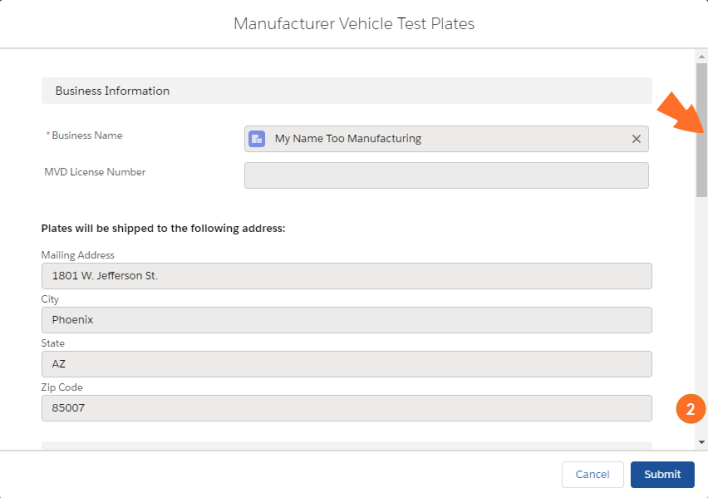
- Information will automatically display, based on the manufacturer license record.
- Scroll down.
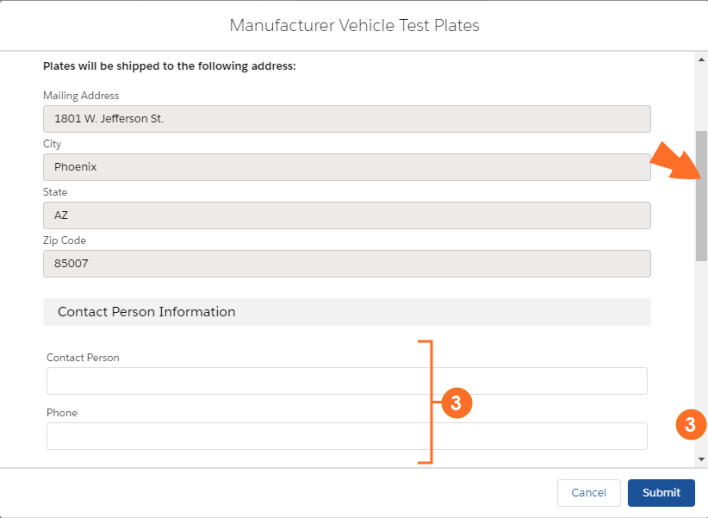
- Type the Contact Person and Phone. Scroll down.
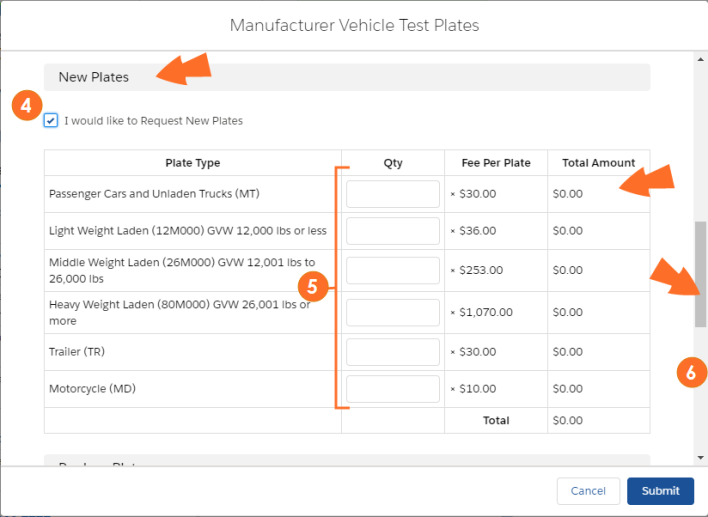
- Click the check box to Request New Plates. Additional fields will display.
- Type the Qty of Dealer Plates requested. The Total Amount due will automatically adjust based on the Qty entered.
- Scroll down.
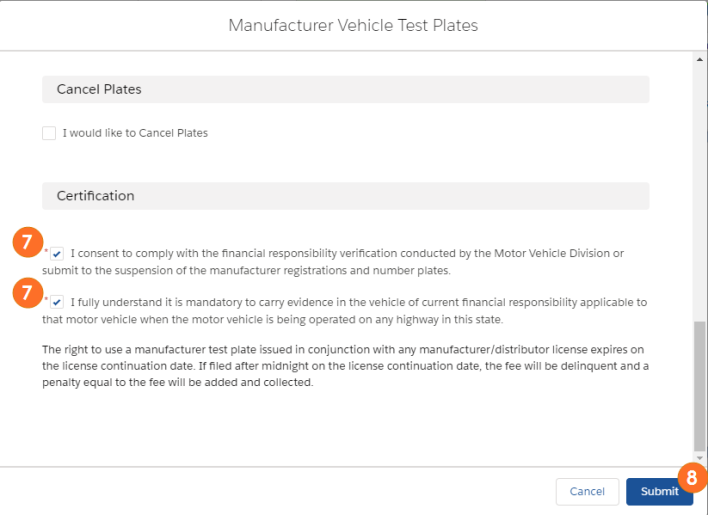
- Check both financial responsibility boxes.
- Click Submit.
A confirmation message appears. Click the X to close the message.

- The Dealer Licensing unit will review the application and an invoice will be emailed to the listed contacts of the business.
Replacing Manufacturer Vehicle Test Plates
- Log intoADOT Force.
- For additional information, see the ADOT Force Sign-Up or Login topic
- From the drop down, select the business.
- Click Next.
- Select MFR Test Plate Application.
- Information will automatically display, based on the manufacturer license record.
- Type the Requestor Name and Phone. Scroll down.
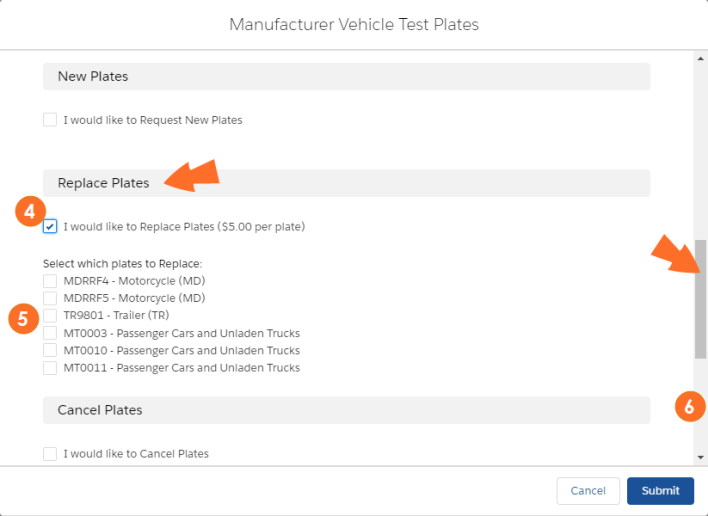
- Click the check box to Replace Plates. All plates that have been assigned to that Manufacturer will display.
- Click the check box next to each Plate Number that should be replaced.
- Scroll down.
- Check both financial responsibility boxes.
- Click Submit.
- A confirmation message appears. Click the X to close the message.
- The Dealer Licensing unit will review the application and an invoice will be emailed to the listed contacts of the business.
Canceling Manufacturer Vehicle Test Plates
This function is completed via the Manufacturer Vehicle Test Plates Application.

|
The steps below for beginning the application are the same as shown above in Submitting a Manufacturer Vehicle Test Plates Application . The screens displayed in this section are only related to the Cancel Plates portion of the Plate Application. |
- Log intoADOT Force.
- For additional information, see the ADOT Force Sign-Up or Login topic
- From the drop down, select the business.
- Click Next.
- Select MFR Test Plate Application.
- Information will automatically display, based on the manufacturer license record.
- Type the Requestor Name and Phone. Scroll down.
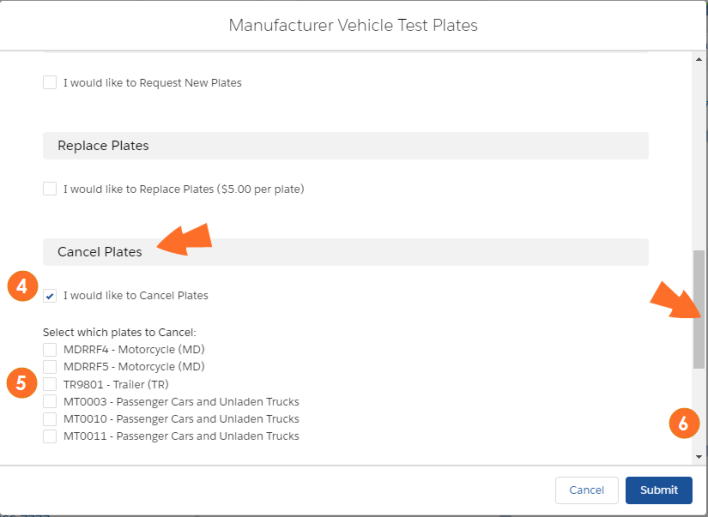
- Click the check box to Cancel Plates. All plates that have been assigned to that Manufacturer will display.
- Click the check box next to each Plate Number that should be canceled.
- Scroll down.
- Check both financial responsibility boxes.
- Click Submit.
- A confirmation message appears. Click the X to close the message.
